Brainbaby / Image editor
AI photo editor.
Edit images with a prompt.
Start with an image. Tell Brainbaby what to change—and what to keep. Explore a new background, a different mood, or a fresh visual style.
Review the image-credit cost before you start.

Supplied image examples. Explore the verified before-and-after edit below.
A clearer brief. A better starting point.
Plan your editHow do I edit a photo with AI on Brainbaby?
Upload a photo you own or are allowed to edit in Brainbaby Image Studio, describe the one change you want, such as a new background or outfit colour, and list what must stay the same. A credit-funded edit uses one image credit, and your first image is free after you confirm your email. Compare the result with your original before using it.
- Price
- Image packs from $5 for 5 credits, one-time; plans from $4/month
- Free
- First image free after you confirm your email; free chat uses a recurring weekly token allowance that resets in full every seven days
- Allowed
- Lawful fiction and art, within our Terms of Service
- Platforms
- Web, iOS, Android and a Mac desktop preview
Free planning tool
Plan a specific change to your photo
Describe the change and what should stay the same. Upload your own or an authorized photo in Image Studio before generating. Planning a prompt does not edit a photo or use credits.
Review the result at full size. Exact text, product details and likenesses need your own check.
An account is required. Check your available image allowance and the job cost in Image Studio before generating or editing. One-time packs and monthly plans provide image credits.
Example prompts
Change a photo background
Edit the uploaded photo; change only the background, to a pale studio wall. Soft light consistent with the original photo. Keep the original subject and crop. Preserve face, clothing, colors and product labels; add no text.
Brighten a dark photo
Edit the uploaded photo; brighten it gently, keep the original location. Reduce harsh shadows while retaining natural color. Keep the original crop. Preserve people and objects; add no new details or text.
Put a product on white
Edit my authorized product photo; replace only the background with a plain white studio surface. Keep a subtle natural contact shadow. Preserve the original product position and crop. Keep shape, color, label and proportions; add no text; I will compare the result with the original.
Remove one distracting object
Edit my authorized photo; remove only the red mug at the back-left of the table, reconstruct that small area to match the surrounding surface. Match the original light and shadows. Preserve the original crop. Preserve all other objects, people and text; add nothing; I will inspect the repaired area at full size.
Plan the edit before you upload
Record the change, the details to preserve and the checks for your result. Keep the brief with your source photo and chosen output.
Free download · 2 pages · 24 fillable fields and checkboxes · No account needed
Fill the PDF in a form-capable PDF app, or print it. Image editing uses the applicable credit allowance.
Capabilities
Change the image. Keep your intent.
Prompt-Guided Editing
Upload a source image and describe one change in plain language. Your source provides a starting composition for the edit.
Background Changes
Ask for a different setting or backdrop, then inspect edges and important details in the result.
Style Variations
Explore a new visual style for an illustration or product concept while keeping the original file.
Focused Object Edits
Describe what to add, remove or revise. Check whether other parts of the image changed unexpectedly.
One Image-Credit Balance
Generation and editing draw from the same image-credit wallet, including purchased top-ups.
Review and Download
Compare the edited result with your source before saving or publishing it.
Use Cases
From product photos to illustrated worlds.
E-Commerce
Create clean product photos with white backgrounds for online stores and marketplaces.
Real Estate
Enhance property photos, fix lighting, and create virtual staging with AI.
Portrait Retouching
Professional headshot enhancement, skin smoothing, and background replacement.
Photo Restoration
Restore old, damaged, or low-quality photos to their former glory.
Design Assets
Create design elements, remove backgrounds from illustrations, and prepare graphics.
Social Media
Quick edits, filters, and transformations for engaging social content.
How It Works
Start with a source. Finish with a review.
Upload Your Image
Choose one image from your device that you own or have permission to edit. Image Studio accepts files up to 10 MB.
Describe One Change
State what should change and what should stay recognizable. Check the image-credit cost before submitting.
Review the Result
Inspect small text, edges and product details. Keep your original and download the result you want to use.
AI image editing with creative control
Editing starts with an existing image
Upload an image you have rights to use, then describe the change and what must remain unchanged. For example: “Replace the gray backdrop with a warm beige studio background; preserve the product shape, label and colors.” Editing differs from text-to-image generation because the source image supplies composition and details to retain.
Choose the editor for your task
This page covers ordinary product and creative image edits. For darker, stylized creative work, use the dedicated Spicy Image Studio page. In either workflow, upload only material you own or have permission to edit and check the result before sharing.
Make one targeted change at a time
Separate background changes, color adjustments and style changes into clear requests. After each edit, compare important details against the original. Small text, faces, repeated patterns and product edges can change unexpectedly, so keep the original file and inspect the result before downloading or sharing.
A practical quality check for AI photo edits
Protect brand and product accuracy
Check logos, ingredient labels, packaging shape and product colors at full size. AI may invent or distort text. When exact details matter, use the generated result as a draft and correct those details in a conventional editor before publication.
Choose generation or editing deliberately
Generate a new image when no source must be preserved. Choose editing for an existing product shot or illustration. If the result repeatedly changes essential details, simplify the request or use a dedicated manual editing tool rather than spending credits repeating the same broad prompt.
See a real background edit
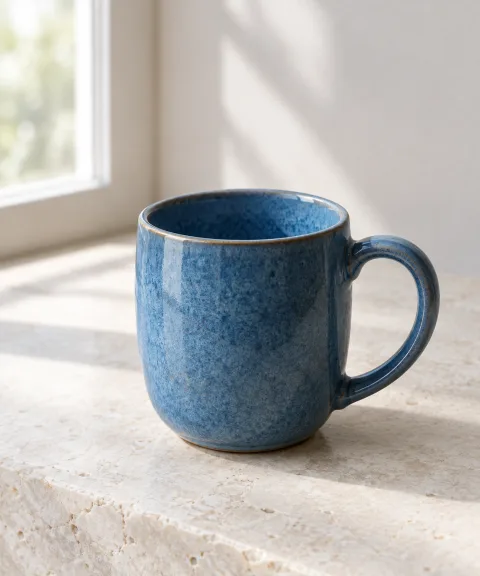
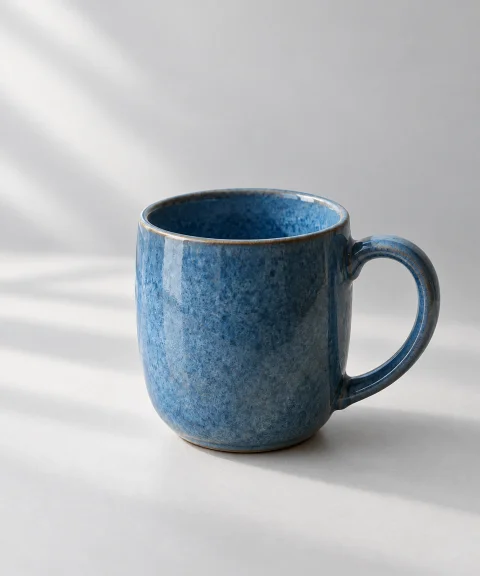
One internal Image Studio test using our own AI-generated cup. Compare the source with the downloaded result before deciding whether this workflow fits your task.
Source image
Edited result
Inspect the edit at a larger size
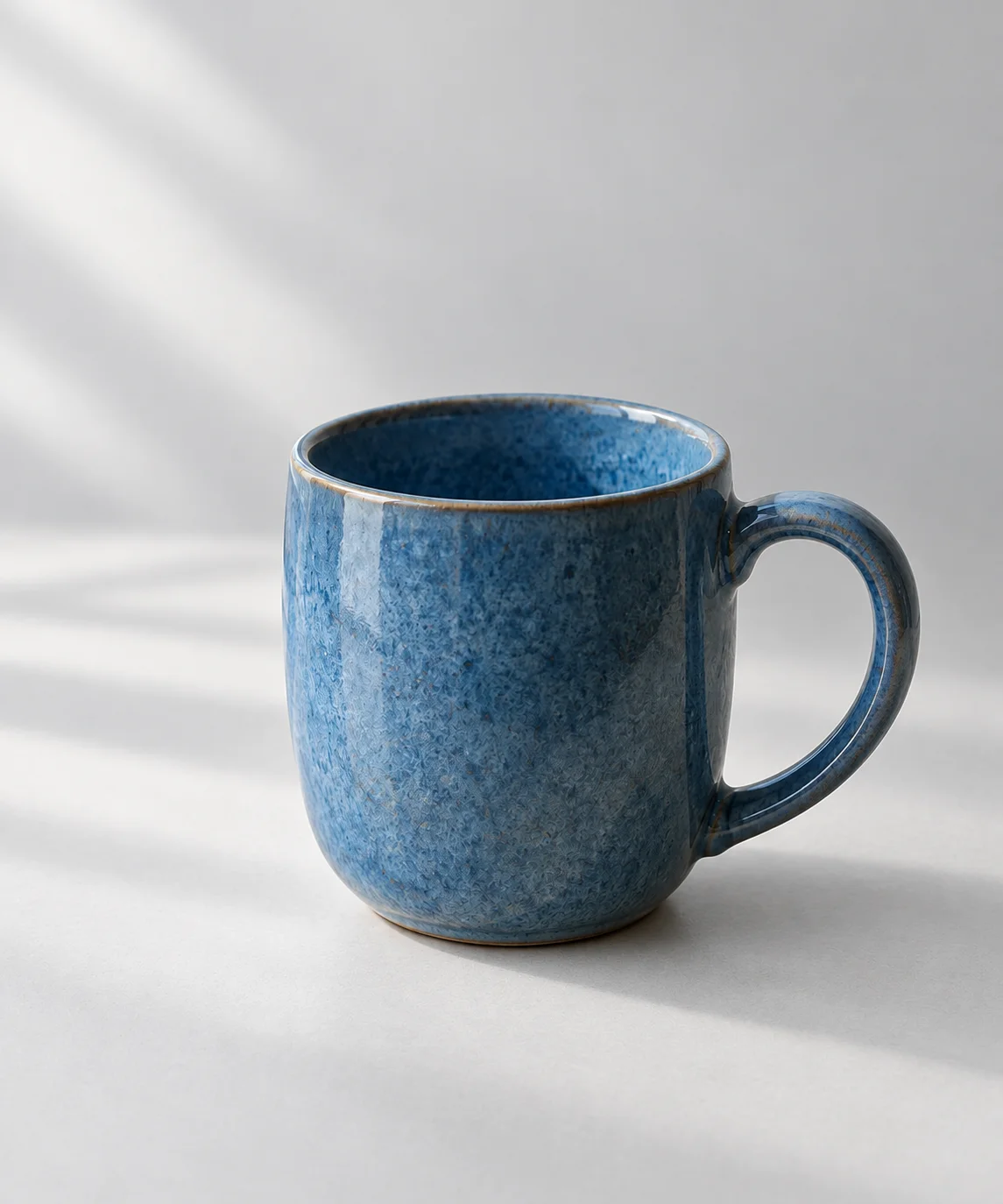
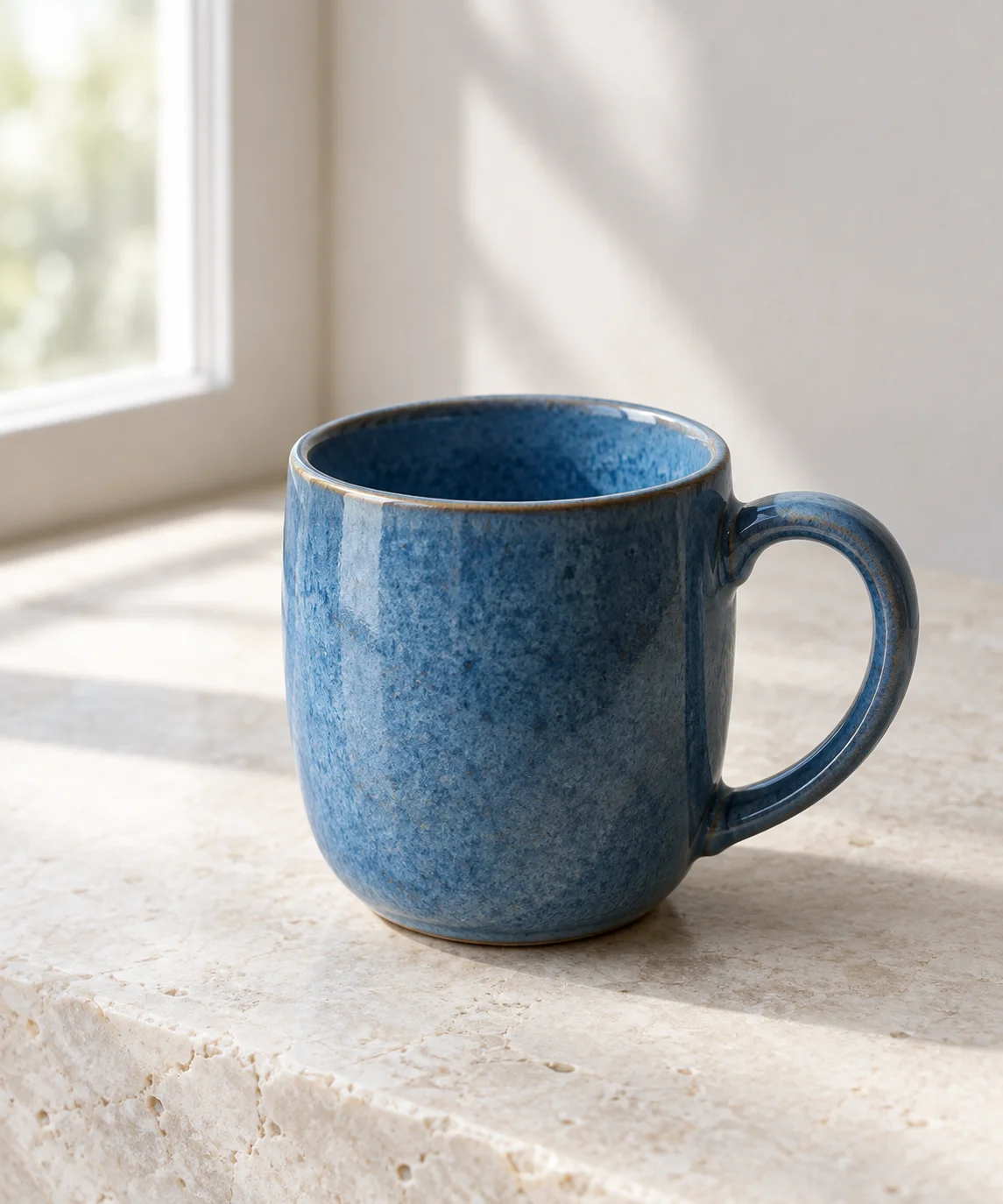
Move the divider to compare the original file with the actual edited result. Check the background, handle and surface. Full-size downloads remain available above.
Exact editing instruction
Replace only the background with a pale gray studio backdrop. Preserve the blue ceramic cup, its handle, glaze, shape, position and framing. Keep natural light and a realistic contact shadow. Do not add text, logos or extra objects.What changed, and what still needs review
- The background changed as requested, and the cup remained blue with a comparable composition and handle shape.
- The glaze texture, lighting and highlights also changed. This was not pixel-exact preservation. Compare the full-size files before using an edit to represent a specific product.
This is one observed result, not a quality benchmark or a guarantee of the same output. Downloading these files and copying the instruction are free. To try the example, upload the source in Image Studio and paste the instruction. Image edits require image credits; review the job cost before submitting. Opening the editor does not start a job.
Frequently Asked Questions
What can I change in an image?
Describe a background, style, color or object change in a prompt. The model uses the uploaded image as a starting point; inspect the output because it may alter details you wanted to keep.
Is AI editing a replacement for manual retouching?
Prompt-based editing is useful for exploring variations quickly. Use a manual editor when packaging text, edges or other exact details must remain unchanged.
Will the edit preserve my product label exactly?
No model can guarantee exact text or geometry. Compare the result with the original at full size and correct any changed label or product detail before publishing.
How large can the uploaded image be?
Image Studio accepts an image file up to 10 MB. Keep the original file so you can compare it with the result and retry with a narrower prompt.
How are image edits charged?
Check your available edit allowance and the job cost in Image Studio. Your first image is free when you sign up: once your email is confirmed, edit one of your own photos or generate one image. After that, generation and editing use the same image-credit balance. Plans may include monthly credits, and one-time top-ups are available.
Can I make darker or stylized edits?
Darker, stylized creative work has a dedicated Spicy Image Studio page. Requests still have to be legal and follow our Terms of Service.
Try Your First Image Edit
Bring a photo you can use and describe one change. Sign up and your first image is free once your email is confirmed; after that, check your edit allowance and the job cost.
Edit your first photo free