Text to image AI: write a prompt, get a picture
Text to image AI creates a brand-new picture from a written description. In Brainbaby Image Studio you describe the subject, setting, style, light and framing, choose an aspect ratio, check the image-credit cost and generate. No drawing skills or special prompt syntax are needed.
Worked text-to-image prompts
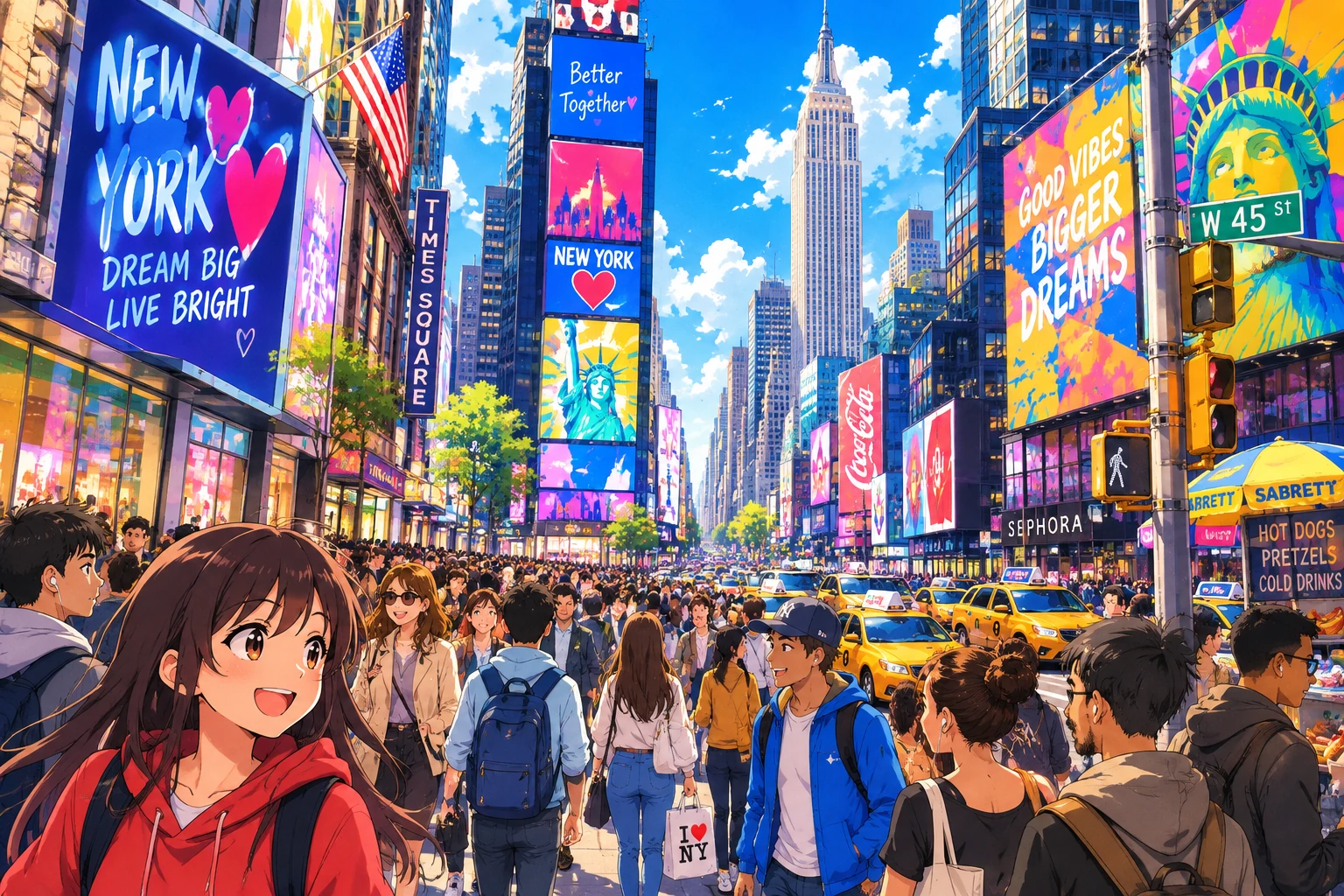
Four images from Brainbaby’s prompt gallery, each with the prompt published beside it. Copy one, swap the subject for your own and keep the structure: subject, setting, style, light, framing.
These are Brainbaby’s own published example images. The prompt beside each one was published with it as a starting point; it is not a record of the exact generation, and your result will differ.
Anime illustration
A vibrant anime illustration of Times Square on a clear summer afternoon. Fill the scene with colorful billboards, yellow taxis, American flags and lively crowds beneath a brilliant blue sky with fluffy clouds. Place a cheerful traveler in his twenties in a red hoodie in the foreground and detailed New York architecture in the distance. Rich colors, crisp linework and a wide cinematic composition.
Pencil and watercolor plan
A detailed isometric cutaway of a luxury mansion’s main floor, drawn in fine pencil and soft watercolor on ivory architectural paper. Show a grand circular staircase, marble foyer, furnished living and dining rooms, kitchen island, guest suite, office and two-car garage. Include numbered rooms, a handwritten room legend, a compass and subtle construction lines.
Fantasy landscape
Floating islands with cherry blossoms and waterfalls cascading into clouds
Science-fiction city
A futuristic cyberpunk city at night with neon lights and flying cars
Build an image prompt that says what you mean
Edit this fictional example or start with your own subject. This builds text in your browser; it does not create an image or use credits.
Review the result at full size. Exact text, product details and likenesses need your own check.
An account is required. Check your available image allowance and the job cost in Image Studio before generating or editing. One-time packs and monthly plans provide image credits.
A fictional product concept
A blue ceramic cup on a pale studio surface. Soft light from the left. Square composition at eye level. No writing or logo.
An original coloring page
An original illustration of a cat sitting in a garden beside large flowers and leaves. Black outlines on a white background. Portrait composition with a clear margin. No shading, no small intricate details, no text.
A text-to-image prompt formula that works
Most weak results come from prompts that name a subject and stop. A model fills every gap with its own defaults, so the more of the frame you decide, the closer the first draft lands. Write the parts in this order and keep each one short.
Template to copy
[Subject] [doing what] in [setting].
Style: [photo / watercolor / anime / 3D render / oil painting].
Light: [soft window light / golden hour / neon at night].
Framing: [close-up / waist-up / wide shot], [lens or angle].
Format: [square / portrait / landscape].
Avoid: [text, logos, extra people].
Subject first
Say who or what the picture is about and what they are doing: “a ceramicist shaping a bowl on a wheel” beats “pottery”. One main subject is easier to control than three.
Then the setting and the medium
A place and a time of day give the model a background to build. The medium (35mm photo, watercolor, flat vector, clay render) decides the whole look, so name it explicitly rather than hoping for it.
End with what to leave out
Models add lettering, watermarks and extra objects when they are not told otherwise. A short “no text, no logos” line saves a regeneration.
Styles to try, and the words that produce them
Photographic
“35mm film photograph”, “50mm portrait”, “shallow depth of field”, “natural skin texture”, “overcast daylight”. Camera words push the result toward a photo; for portraits and product shots see the AI photo maker guide.
Illustration
“Watercolor on cold-press paper”, “ink and wash”, “flat vector illustration”, “children’s book illustration”, “risograph print”. Name the paper or print process for texture.
Anime and manga
“Anime key visual”, “crisp linework”, “cel shading”, “manga panel, screentone”. Add the mood and the camera angle as you would for a film still.
3D and product render
“Isometric 3D render”, “soft clay render”, “studio product render on a seamless backdrop”. Useful for icons, mockups and explainer graphics.
Painting
“Oil painting with visible brushstrokes”, “gouache”, “impressionist”. Mention the palette (“muted earth tones”, “saturated primaries”) to keep the colors coherent.
Choose the aspect ratio for where the image will be used
Decide the frame before you generate: cropping a square image to a wide banner throws away the composition. The ratios on offer depend on the model you pick, so check the options shown in Image Studio.
Square (1:1)
Feed posts, profile pictures, product tiles and album-style covers. Keep the subject centered with some margin.
Portrait (4:5, 2:3, 9:16)
Phone screens, stories, posters and book covers. Leave space at the top or bottom if a headline will sit there.
Landscape (3:2, 16:9)
Blog headers, slide backgrounds, thumbnails and desktop wallpapers. Ask for “empty space on the left” when text will overlay the image.
Fixing common text-to-image problems
The words in the image are garbled
Generated lettering is unreliable. Ask for “no text”, then add the headline in a design tool or slide where you control the spelling.
Hands, teeth or reflections look wrong
Simplify the pose, hide hands in pockets or out of frame, or use the editor to fix one detail rather than regenerating the whole picture.
Every draft looks completely different
Change one part of the prompt at a time, and keep the rest word for word. Then you can tell which change helped.
The picture is too busy
Cut secondary subjects and adjectives. A clear subject, one setting and one light source usually read better than a long list.
What you control with text to image
Plain-language prompts
Describe the picture the way you would brief a photographer or illustrator. No keyword lists or special syntax, and you can write in your own language.
Style decided by your words
Photo, watercolor, anime, 3D render or oil painting: name the medium and the details of the look, and compare drafts side by side.
Aspect ratio before you start
Pick square, portrait or landscape from the options shown for the selected model, so the composition fits where the image will appear.
Model choice where available
Image Studio lists the models open to your account. Each interprets a prompt differently, which is worth testing on the same brief.
Cost shown before you generate
Your balance and the image-credit cost of the job appear before you submit, so a long brief never turns into a surprise.
From text to editing
When one detail is off, take the image into editing mode and change only that detail instead of rewriting the whole prompt.
What people make from a prompt
Social posts and thumbnails
Generate a scroll-stopping visual in the right ratio, with space left for your own headline.
Blog headers and slides
Illustrate an article or a presentation section with a picture that matches the topic instead of a generic stock photo.
Concept art and storyboards
Explore characters, scenes and moods before committing to a final illustration or shoot.
Product and packaging ideas
Visualize a concept or a label direction quickly; check real product details before using an image for sale.
How to turn text into an image
Describe the subject and setting
Write who or what the picture shows, what is happening and where. Example: “an elderly fisherman mending a net on a harbor wall at dawn”.
Add style, light and framing
Name the medium (photo, watercolor, anime), the light (golden hour, neon, overcast) and the framing (close-up, wide shot), plus anything to leave out.
Choose the format and check the cost
In Image Studio, pick the model and aspect ratio, then review the image-credit cost and your balance before generating.
Generate, inspect, refine one thing
Look at the result at full size. If it misses, change one part of the prompt and generate again, or edit the detail directly.
Frequently Asked Questions
What is text to image AI?
Text to image AI is a model that creates a new picture from a written description, called a prompt. You describe the subject, style, light and framing, and the model generates an image that matches the words as closely as it can. Results vary by model and wording.
Is text to image free on Brainbaby?
Planning and writing prompts is free, and so is copying the examples on this page. Generating requires an account. Sign up and your first image is free: once your email is confirmed, generate one image or edit one of your own photos. After that, images use credits from a one-time pack or a monthly plan, and Image Studio shows the cost before you generate.
Can I write my prompt in a language other than English?
Yes. Describe the picture in your own language. Most models understand major languages well; if a detail is ignored, try naming it more concretely or adding the English term for a specific style in brackets.
What makes a good text-to-image prompt?
One clear subject, a setting, a named medium or style, the light and the framing, plus what to leave out. Keep it specific rather than long, and change one element at a time when you refine.
Which aspect ratios can I choose?
Square, portrait and landscape options are shown in Image Studio for the selected model; the exact list depends on the model. Choose the format for where the image will be published before you generate.
Can text to image put readable words in the picture?
Some models handle short words, but lettering is still the least reliable part of a generated image. For headlines, prices or brand names, ask for no text and add the words in a design tool.
What is the difference between text to image and image to image?
Text to image starts from words only and invents the whole picture. Image to image starts from a picture you upload and changes it according to your instruction, keeping its composition. Use image to image when a photo, sketch or product must stay recognizable.
Can I use the images commercially?
Check the service terms and the terms of the model you use for your intended purpose. You also need rights to anything you reference, such as a real person’s likeness or a brand; the generated image alone does not clear those rights.